Table of contents
The Channel Detail Page allows you to configure and manage an existing social channel connected to Robopost. This includes updating channel metadata, adjusting posting settings, applying UTM parameters, enabling watermarks, and refreshing or removing the channel.
Channel Overview
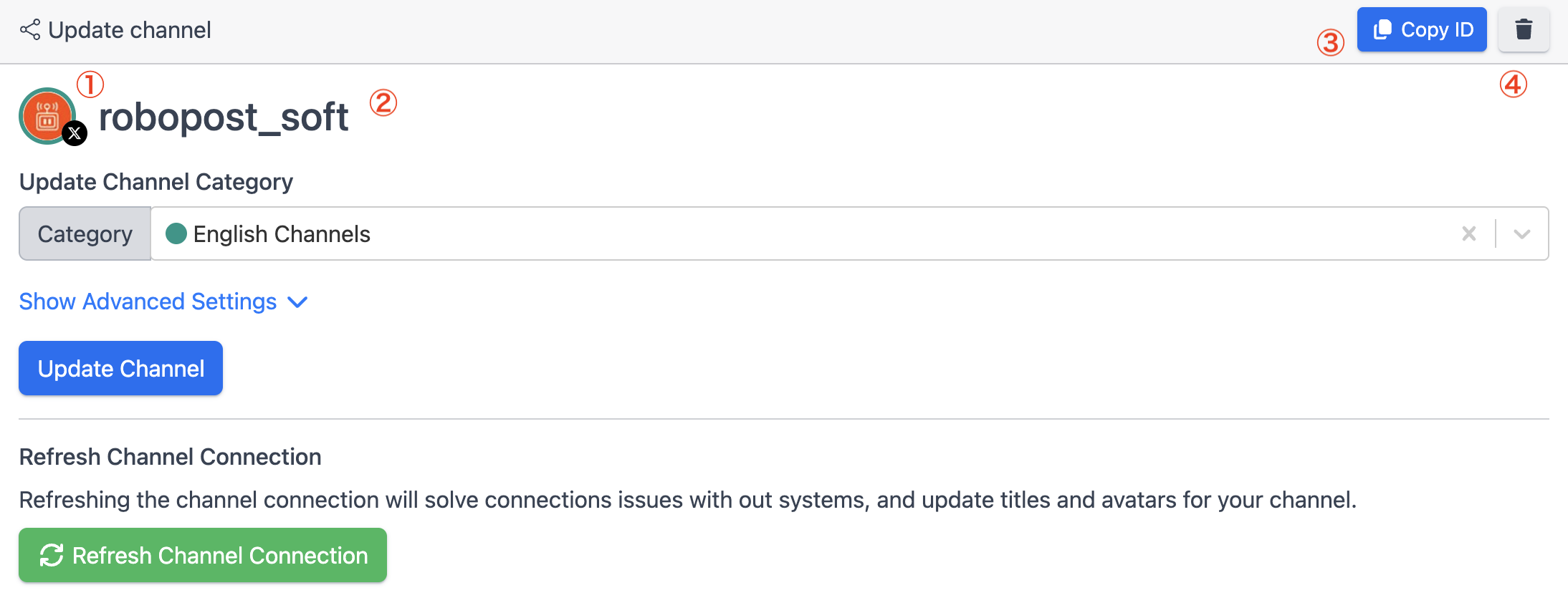
At the top of the page, you'll see:
- Channel Icon — The social platform’s logo (LinkedIn, TikTok, Instagram, etc.).
- Channel Name — The name associated with the connected channel.
- Copy ID Button — Copies the channel’s unique identifier to clipboard.
- Delete Channel Button — Disconnect the channel from Robopost.
Update Channel Category
You can categorize your channel to help with grouping.
Fields
- Category (Dropdown) — Select a category (e.g., Business, Brand, Personal).
After choosing a category, click Update Channel to save.
Advanced Settings
Click Show Advanced Settings to access additional configuration options.
Control Settings
Enable Timezone Control
Set the timezone to schedule content in your preferred timezone.
Max Daily Posts
Sets the maximum number of posts allowed per day for this channel.
Post Signature
Automatically append text to every post from this channel. Useful for branding, disclaimers, or recurring hashtags.
Click Update Channel to save.
Default UTM Parameters for Links in Posts
Automatically append UTM parameters to links posted on this channel for analytics tracking. All fields are optional. Click Update Channel to save.
Available fields
- UTM Source
- UTM Medium
- UTM Campaign
- UTM Term
- UTM Content
Watermark Settings
Auto Apply Watermark When Posting
When enabled, Robopost will automatically apply your workspace’s default watermark to all images/videos before posting. Click Update Channel to save.
Refresh Channel Connection
Refreshing your channel connection will:
- Revalidate authentication tokens
- Resolve failed posting issues
- Update titles and avatars
- Sync metadata from the social platform
Use Refresh Channel Connection when:
- Posts are failing due to expired tokens
- The account’s username or avatar has changed
- You receive a “connection expired” or “reauthorization needed” warning
Deleting a Channel
Use the trash icon in the top-right corner to disconnect the channel from Robopost.
⚠️ Warning:
Deleting a channel is permanent and will remove:Scheduled postsChannel-specific settingsWatermark and UTM configurations